
Fixing No Sound or Audio Delay
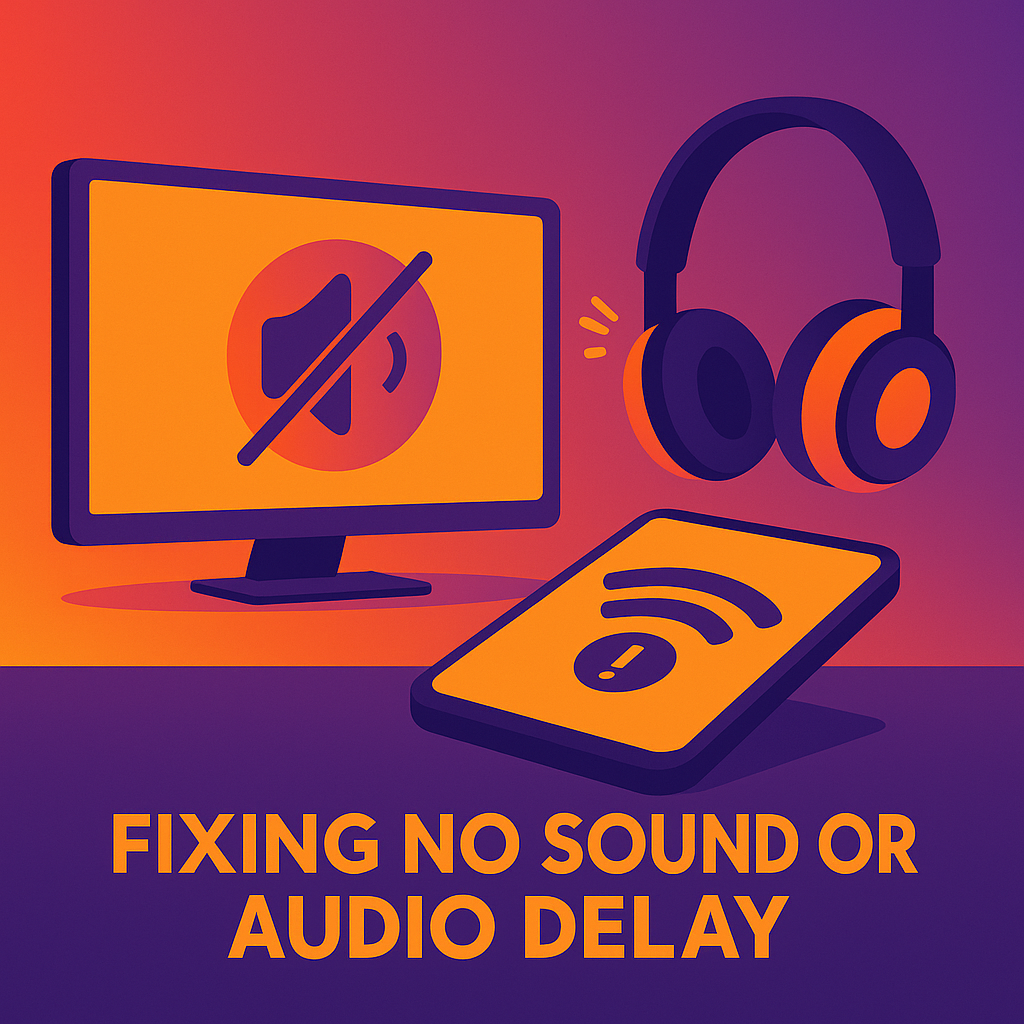
Experiencing no sound or audio delays on your Smart TV can quickly spoil your movie nights, favourite TV shows, or streaming enjoyment. Whether the audio is completely silent or just out of sync with the picture, these issues are common - but usually easy to fix.
In this straightforward guide created specifically for home users on the Central Coast, we’ll help you quickly troubleshoot and fix your TV’s sound issues, with clear steps and friendly advice. And remember, Zelrose IT is always available if you need extra help.
Common Audio Problems
No sound at all (TV silent, despite volume being turned up)
Audio delay (sound doesn’t match lip movements)
Intermittent audio dropouts
Distorted or poor-quality audio
Easy Solutions for No Sound or Audio Delay
Follow these simple steps first:
1. Check TV Volume and Mute Settings
It sounds obvious, but it’s easy to overlook:
Ensure your TV isn’t muted (press mute/unmute on your remote)
Confirm your TV volume isn’t set to zero
If using external speakers or soundbar, check volume settings there too
2. Restart Your TV
This resolves many audio issues instantly:
Turn your TV off and unplug it for 30 seconds
Plug it back in, then turn it on again
Test your audio again
3. Check Audio Output Settings
Incorrect audio settings can cause silent audio:
Open Settings on your TV
Navigate to Audio Settings or Sound
Ensure your audio output is set correctly:
Internal TV Speakers if using built-in speakers
HDMI or Optical Audio if using external sound systems
Adjust the audio output mode if needed (PCM or Stereo typically works best)
4. Check HDMI and Audio Cable Connections
Loose or faulty cables can cause sound issues:
Ensure HDMI cables connecting your TV to soundbars or external speakers are securely plugged in
Replace suspect cables with new ones if needed
Use different HDMI ports to test if your original port has issues
5. Fix Audio Delay (Lip Sync Issues)
If audio is out-of-sync with video:
Most TVs and soundbars have a “Lip Sync” or “Audio Delay” setting
Open Audio Settings on your TV or soundbar
Adjust the delay slightly until audio and video align perfectly
6. Disable Extra Audio Processing Features
Extra audio enhancements (e.g., surround sound, virtual sound) can sometimes cause audio lag or distortions:
Open Audio Settings
Disable features such as “Surround Sound,” “Virtual Sound,” or “Digital Audio Processing”
Check if audio improves after disabling each feature
7. Update Your TV’s Firmware
Outdated TV software can cause audio issues:
Go to your TV’s Settings
Select Support > Software Update (Samsung/LG) or System > Software Update (Sony/TCL/Hisense)
Install available updates
Related guide: Smart TV Firmware Update Steps
Advanced (But Simple!) Fixes
8. Reset TV Audio Settings
If issues persist, reset audio settings to default:
Navigate to Settings > Audio
Select Reset Audio Settings (if available)
Restart your TV again afterward
9. Factory Reset Your TV (Last Resort)
This fully resets your TV to factory settings (you’ll lose saved preferences and app logins):
Go to Settings > General > Reset to Initial Settings (LG) or Settings > Support > Self Diagnosis > Reset (Samsung)
Follow on-screen prompts
After reset, test your audio again
Important: Factory resets erase personal settings.
When Should You Call Zelrose IT?
Call Zelrose IT if:
You’ve tried troubleshooting and still have no sound or persistent audio delays
You suspect hardware or deeper software problems
You’d prefer professional, hassle-free support
Zelrose IT offers:
Fast, friendly, jargon-free in-home support
Audio troubleshooting for TVs, soundbars, and home theatre systems
Firmware updates, cable checks, and equipment recommendations
Quick Checklist: Fixing No Sound or Audio Delay
Check mute and volume settings
Restart your TV
Verify audio output settings
Check HDMI and audio cables
Adjust audio delay or disable audio enhancements
Update your TV firmware
Reset audio settings or factory reset
Call Zelrose IT for expert help if needed
Audio Still Causing Trouble? Call Zelrose IT!
Don’t let audio issues ruin your entertainment. Zelrose IT can quickly fix your sound problems, ensuring your TV audio is crystal clear and perfectly synced.
Call 0478 843 700 or visit www.zelrose.com.au to schedule friendly, professional help at your Central Coast home.
Related Posts You Might Like: