
Fixing Bluetooth Interference Problems
Bluetooth devices are designed to make life easier - no cables, easy connectivity, and great mobility around your home. But sometimes, your Bluetooth headphones, speakers, or keyboards might cut out, produce static, or drop connections randomly. Usually, the culprit is Bluetooth interference.
In this simple guide, specifically tailored for Central Coast home users, we’ll explain exactly why Bluetooth interference happens, give you practical solutions to fix it, and help you know when to call in friendly local experts at Zelrose IT.
What Causes Bluetooth Interference?
Bluetooth uses radio waves (similar to Wi-Fi) and can easily experience interference from:
Wi - Fi routers
Cordless phones
Microwaves
USB 3.0 devices
Thick walls or metal objects
Too many Bluetooth devices in one area
Signs of Bluetooth Interference
You may notice:
Audio stuttering, skipping, or static
Sudden disconnections
Delayed or lagging sound
Difficulty pairing or reconnecting
How to Fix Bluetooth Interference Easily
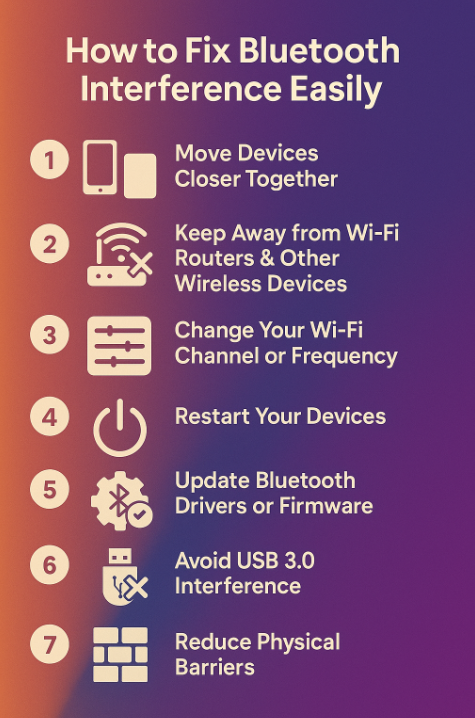
Try these quick solutions step-by-step:
1. Move Devices Closer Together
Bluetooth typically has a range of about 10 metres, but obstacles and interference can greatly reduce this.
Move your Bluetooth speaker or headphones closer to your phone, tablet, or computer.
Ideally, keep them within 1 - 3 metres.
2. Keep Away from Wi-Fi Routers & Other Wireless Devices
Wi-Fi routers can disrupt Bluetooth signals, especially if they’re very close.
Move your Bluetooth device at least 2 - 3 metres from your router.
Turn off other Bluetooth devices nearby that you’re not using.
3. Change Your Wi-Fi Channel or Frequency
If you suspect your Wi-Fi router is causing issues:
Log into your router settings and choose a different Wi-Fi channel (Channel 1, 6, or 11 typically work best).
Switch your router from 2.4 GHz to 5 GHz if your devices support it, as Bluetooth shares the 2.4 GHz band.
Check out our guide: Best Wi - Fi Channels and Band Settings
4. Restart Your Devices
A quick restart often resolves interference or temporary glitches.
Restart your Bluetooth device and your phone, tablet, or computer.
5. Update Bluetooth Drivers or Firmware
Outdated drivers (on PCs) or firmware (on speakers/headphones) can cause instability.
On Windows: Go to the manufacturer's website (Dell, HP, Lenovo, etc.) and download the latest Bluetooth drivers.
For headphones or speakers: Check your device’s website or app for firmware updates.
6. Avoid USB 3.0 Interference
USB 3.0 cables and devices (blue ports) can interfere with Bluetooth signals.
Keep Bluetooth dongles or adapters away from USB 3.0 ports.
Use USB extension cables to move Bluetooth adapters away from your PC or laptop if needed.
7. Reduce Physical Barriers
Don’t keep your phone or Bluetooth device inside drawers, metal cases, or behind thick walls.
Place your device in an open space for best signal quality.
Additional Tips for PC Users
If your PC Bluetooth is causing trouble:
Use a Bluetooth USB adapter/dongle with an extension cable, positioning it closer to your Bluetooth devices.
Update your PC’s Bluetooth driver through Device Manager or your PC manufacturer's website.
When to Call Zelrose IT
If you’ve tried these solutions and still experience interference, Zelrose IT is here to help:
We’ll diagnose the exact cause of Bluetooth interference.
Optimise your Wi-Fi and Bluetooth setup for maximum performance.
Update drivers or firmware for your Bluetooth accessories.
Recommend new gear or solutions if your current setup isn’t ideal.
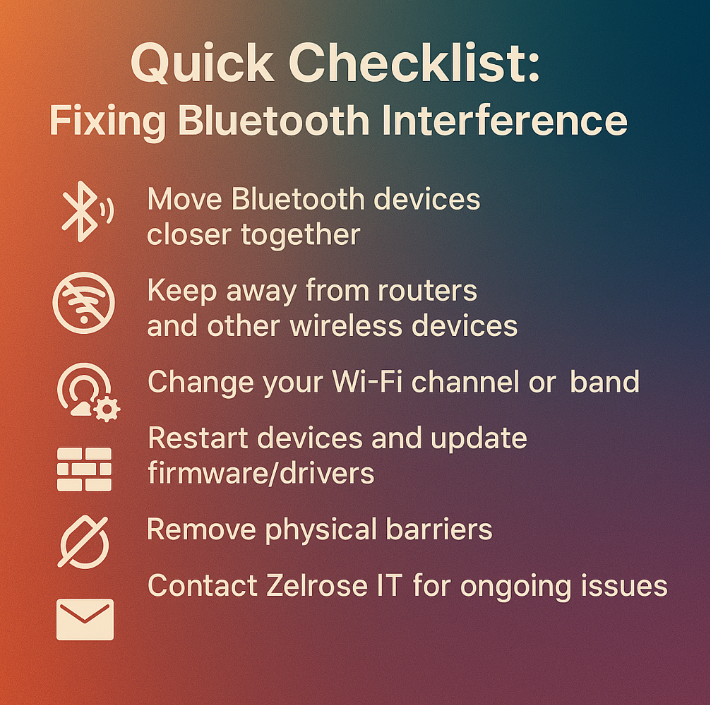
Quick Checklist: Fixing Bluetooth Interference
Move Bluetooth devices closer together
Keep away from routers and other wireless devices
Change your Wi-Fi channel or band
Restart devices and update firmware/drivers
Remove physical barriers
Contact Zelrose IT for ongoing issues
Bluetooth Still Causing Headaches? Call Zelrose IT
Don’t let Bluetooth interference spoil your audio or interrupt your day. Zelrose IT offers easy solutions, fast support, and clear advice to get your Bluetooth gear working flawlessly again.
Call 0478 843 700 or visit www.zelrose.com.au to schedule friendly, professional support - right at home or remotely.
Related Posts You Might Like: