
Using Task Manager to Unfreeze a PC
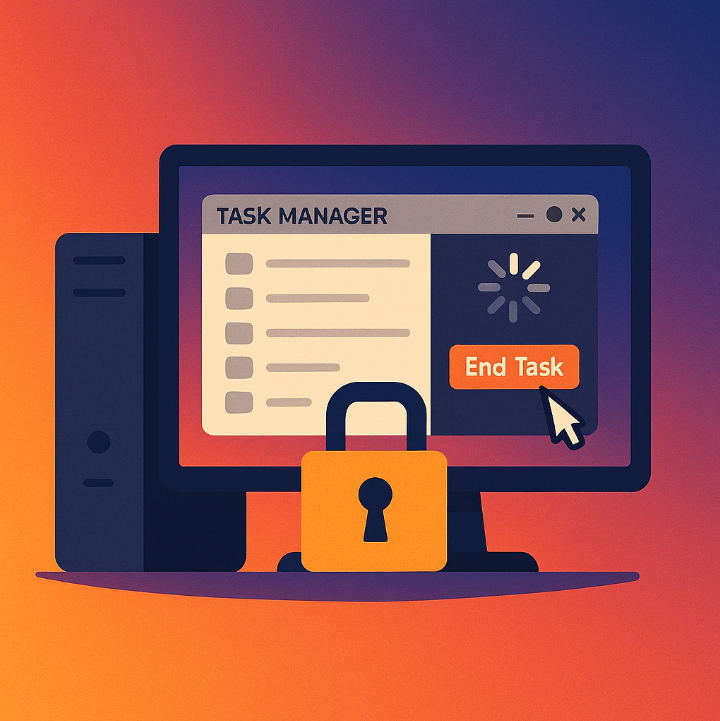
We've all experienced it - a frozen computer that stops responding while you're browsing the internet, writing a document, or watching a video. When your PC locks up, it can feel like your only option is to restart and hope for the best. But before you hit that power button, there’s a better solution: Task Manager.
In this easy-to-follow guide, created especially for home users on the Central Coast, we’ll show you how to use Task Manager to unfreeze your Windows PC safely. You’ll also learn how to identify which programs are causing problems - and when it’s time to call in the friendly team at Zelrose IT.
What Is Task Manager?
Task Manager is a built-in Windows tool that lets you:
See which apps and background processes are running.
Check how much memory or CPU each program is using.
Force-close unresponsive apps (a safe alternative to restarting your PC).
Monitor your system performance in real time.
If your PC is frozen but your mouse or keyboard still works, Task Manager is your best first step.
How to Open Task Manager
Here are three easy ways to open it:
Method 1: Keyboard Shortcut
Press Ctrl + Shift + Esc.
Method 2: Right-Click the Taskbar
Right-click the bottom bar of your screen and choose Task Manager.
Method 3: Ctrl + Alt + Delete
Press Ctrl + Alt + Delete, then select Task Manager from the menu.
If your PC is completely frozen and none of these work, you may need to restart it - but only as a last resort.
Using Task Manager to Unfreeze Your PC
Once Task Manager is open:
Click the "Processes" tab (it should be open by default).
Look for any program marked "Not Responding" - this is often the cause of the freeze.
Click the problematic app to highlight it.
Click the "End Task" button in the bottom-right corner.
This will force the unresponsive app to close, freeing up memory and hopefully returning your system to normal.
Common Offenders That Cause Freezing
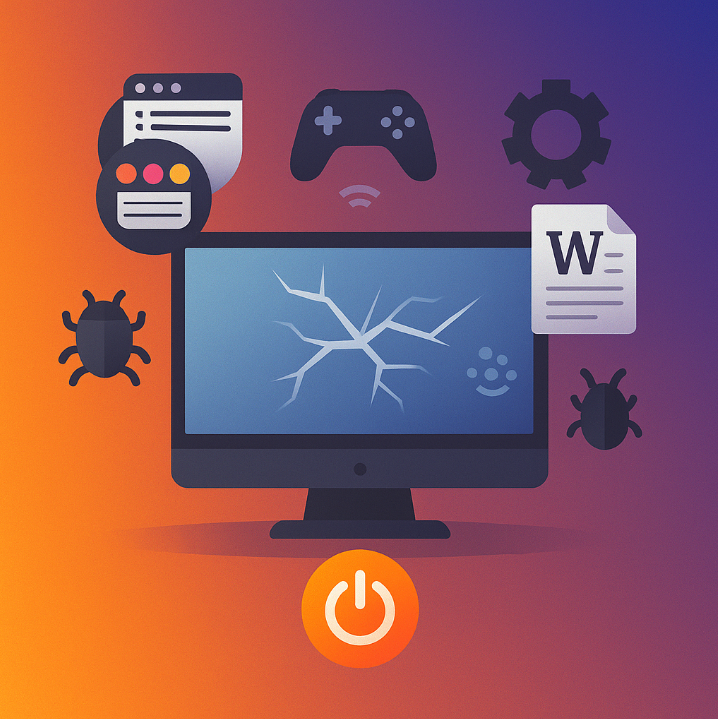
Some programs are more likely to cause your system to freeze:
Web browsers with too many tabs open (e.g. Chrome or Edge).
Games or media players.
Large documents in Word or Excel.
Updates running in the background.
Malware or unknown programs.
What If Task Manager Itself Is Unresponsive?
If Task Manager doesn’t open or freezes too:
Press and hold your power button for 5–10 seconds to perform a hard shutdown.
Wait 30 seconds, then turn your PC back on.
Once restarted, open Task Manager to review recent app activity or uninstall problematic software.
Using Task Manager to Prevent Future Freezes
Once you're back in control, you can use Task Manager to clean up and optimise:
Disable Unnecessary Startup Apps
In Task Manager, go to the "Startup" tab.
Right-click and disable apps that don’t need to run on startup.
This reduces memory usage and speeds up boot time.
Learn more in our related guide: Managing Startup Programs for Faster Boot
Monitor Resource Usage
Click the "Performance" tab to see if you're low on memory or CPU power.
If you're constantly maxing out your RAM or CPU, consider an upgrade.
See: Upgrading RAM vs SSD: What’s Better?
When Should You Call Zelrose IT?
If your PC continues to freeze regularly - even after using Task Manager - it’s time for a deeper look.
Call Zelrose IT if:
Your PC freezes more than once a week.
You suspect malware or hidden programs.
You’re not confident making changes on your own.
You’d like a full system check-up or upgrade.
We offer fast, friendly, and jargon-free support to home users across the Central Coast.
Bonus Tips for Keeping Your PC Stable
Restart your computer at least once a week.
Keep your system and drivers up to date.
Run antivirus scans regularly.
Don’t overload your system with too many apps running at once.
Quick Summary: Unfreezing with Task Manager
✔ Open Task Manager with Ctrl + Shift + Esc
✔ Look for “Not Responding” programs
✔ Select and click “End Task”
✔ Monitor performance and disable unnecessary startup apps
✔ Call Zelrose IT if problems persist
Still Freezing? Let Zelrose IT Help

Don’t put up with a computer that constantly crashes or freezes. Let Zelrose IT diagnose the problem, clean up your system, and have it running smoothly again - either in-person or remotely.
Call 0478 843 700 or visit www.zelrose.com.au to book fast, friendly tech support today.
Related Posts You Might Like: