
Updating iOS/Android Without Issues
Keeping your smartphone’s operating system (OS) up to date is one of the easiest and most effective ways to improve speed, fix bugs, and stay secure. But many home users worry that an update might slow things down or cause something to go wrong.
This simple guide for Central Coast residents shows you exactly how to safely update your Android or iPhone, what to do before and after updating, and how to avoid the most common problems. If you ever feel unsure, Zelrose IT is here to help you every step of the way.
Why Updating Your Phone Is Important
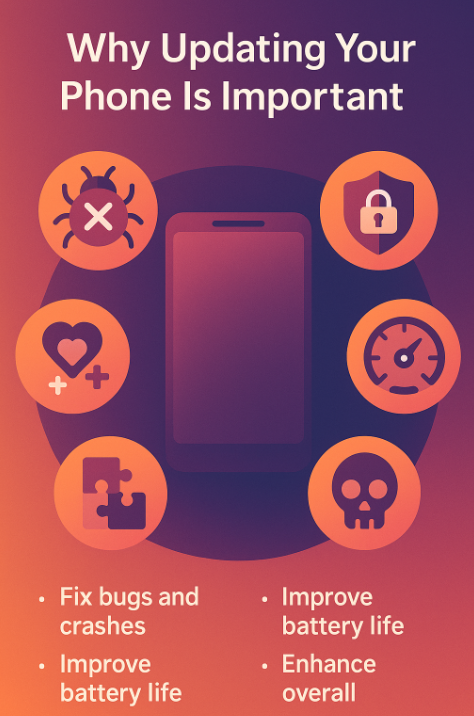
Software updates aren’t just about getting the latest features - they also:
Fix bugs and crashes
Improve battery life
Patch security vulnerabilities
Make apps more compatible
Enhance overall performance
Ignoring updates can leave your device vulnerable to malware or glitches.
How to Update iOS (iPhone & iPad)
1. Check for Updates
Go to Settings > General > Software Update
If an update is available, tap Download and Install
2. Before You Update
Charge your battery to at least 50%
Connect to Wi-Fi to avoid mobile data usage
Back up your data using iCloud or iTunes:
iCloud: Go to Settings > [Your Name] > iCloud > iCloud Backup > Tap Back Up Now
3. During the Update
Don’t use your phone during the update
Your device may restart several times - this is normal
Updates usually take 10–30 minutes
4. After the Update
Check that your apps still work properly
Reconnect to Bluetooth and Wi-Fi if needed
If anything seems off, restart your phone again
How to Update Android Devices
(Android steps vary slightly by brand - Samsung, Google Pixel, Oppo, etc. - but the process is very similar.)
1. Check for Updates
Go to Settings > System > Software Update
Tap Check for Updates
If available, tap Download and Install
2. Before You Update
Charge your phone to at least 50%
Connect to Wi-Fi
Back up your data:
Use Google Backup: Go to Settings > System > Backup, then tap Back Up Now
3. During the Update
Leave the phone plugged in if possible
Avoid using your phone during the update
Your phone may restart once or twice
4. After the Update
Check app compatibility
Re-log into apps if needed
Reset any settings that may have changed during the update
Common Update Problems and How to Avoid Them
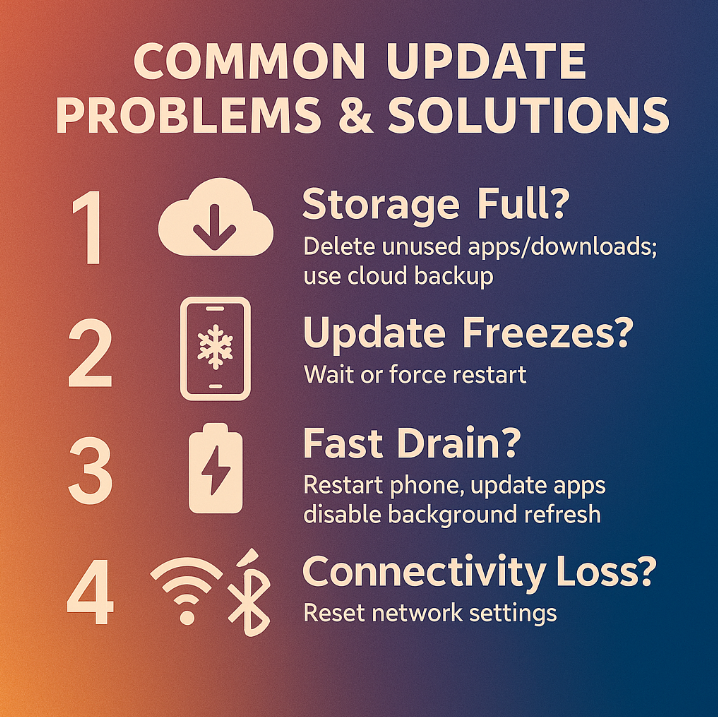
Not Enough Storage Space?
Fix:
Delete unused apps, old downloads, or photos
Use cloud backup like Google Photos or iCloud to free up space
Related: Managing Storage: Free Up Space Easily
Phone Freezes During Update?
Fix:
Wait a few extra minutes
If unresponsive for more than 20–30 mins, try a force restart
Learn how: How to Force Restart Android and iOS
Battery Drains Quickly After Update?
Fix:
Restart the phone again after the update
Update apps in the App Store or Play Store
Disable background app refresh or location services
Related: Battery Draining Too Fast: What to Do
Wi-Fi or Bluetooth Stops Working?
Fix:
Go to Settings > Reset > Reset Network Settings
This resets Wi-Fi, Bluetooth, and mobile data settings without deleting your files
When to Call Zelrose IT
Sometimes an update doesn’t go smoothly. If you're seeing error messages, stuck on a loading screen, or unsure what to do next, Zelrose IT is here to help.
We can:
Troubleshoot and complete updates safely
Recover data from failed updates
Fix post-update bugs or app issues
Recommend the right time to update older phones
Quick Update Checklist
Charge your phone to 50% or higher
Back up your data
Connect to Wi-Fi
Download and install the update
Restart your phone if needed
Contact Zelrose IT if anything seems off
Need Help Updating? Call Zelrose IT Today
Don’t let update worries stop you from keeping your phone safe and speedy. Let Zelrose IT handle your software updates, backups, and troubleshooting - all with friendly, local support.
Call 0478 843 700 or visit www.zelrose.com.au to book mobile device help at home or remotely.
Related Posts You Might Like: