
Device Shows ‘Connected’ but Not Working
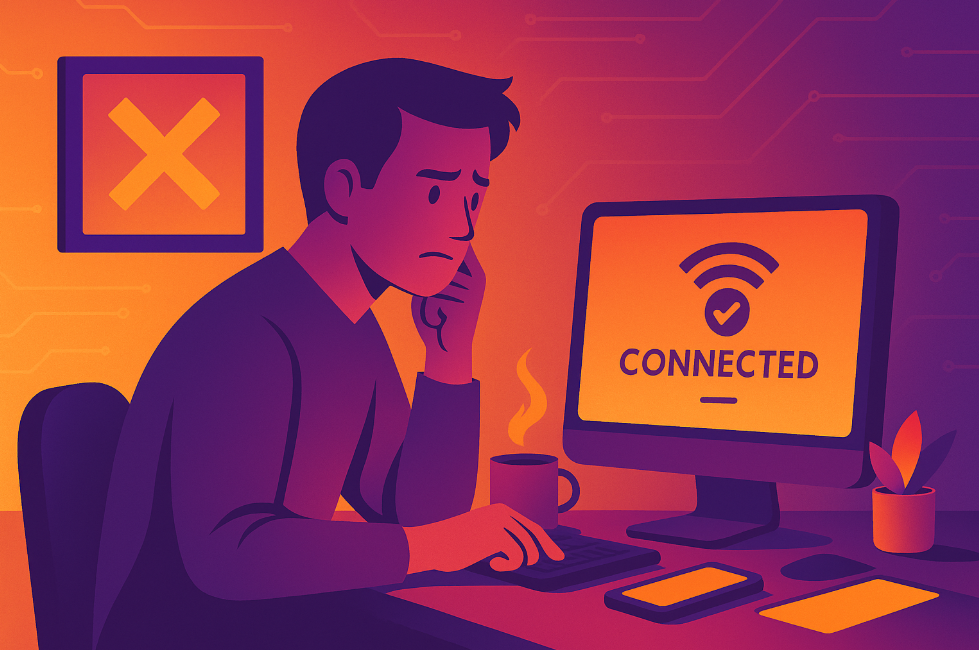
If your Bluetooth headphones, speaker, or keyboard says it’s “connected” but still won’t play audio or respond properly, it’s a frustrating problem - but luckily, it’s usually easy to fix.
In this simple guide for home users on the Central Coast, we’ll walk you step-by-step through how to quickly fix Bluetooth devices that appear connected but aren't working as they should. And if you ever feel unsure, your friendly local tech experts at Zelrose IT are ready to help.
Common Symptoms of This Problem
Your device (headphones, speaker, keyboard, mouse) says "connected" but doesn’t respond
Audio doesn’t play through connected headphones or speakers
Connected keyboard or mouse doesn’t respond to input
Your phone or PC recognises the device but no functions work
Step - by - Step Solutions
Try these easy fixes first:
1. Double - Check Audio Output (Headphones/Speakers)
For Windows PCs:
Click the speaker icon in the taskbar (bottom-right corner)
Ensure your Bluetooth device is selected as the audio output
For Mac:
Click the sound icon in the top-right menu bar
Choose your Bluetooth device from the list
For Android/iPhone:
Ensure the volume isn’t muted
Confirm Bluetooth audio is selected (tap volume buttons to see audio source)
2. Reconnect the Bluetooth Device
This often resolves the issue instantly:
Turn off Bluetooth on your phone or PC, wait a few seconds, then turn it back on
Turn your Bluetooth device off and on again
Wait for reconnection
3. Forget and Re-Pair the Device
If simple reconnecting doesn't work, fully re-pair:
Forget/unpair the device from Bluetooth settings
Put your Bluetooth device back into pairing mode
Reconnect it again fresh
Detailed steps: How to Re - Pair Bluetooth Devices
4. Restart Your Phone or PC
Sometimes the simplest fix works best:
Restart your phone, tablet, or computer fully
Reconnect your Bluetooth device again
5. Charge Your Device
A low battery can prevent proper function, even if it connects:
Ensure your Bluetooth headphones, keyboard, or mouse are fully charged
Reconnect after charging
6. Check for Firmware Updates
Bluetooth devices often have software updates to fix bugs:
Check the manufacturer's website or smartphone app
Follow instructions for updating firmware or software
7. Reset Your Bluetooth Device
Many Bluetooth devices have a reset option:
Check the user manual or search “[Your Device Model] reset instructions”
Typically involves holding buttons for 10 - 15 seconds
8. Reset Network Settings (Advanced, Safe)
If the issue continues, reset Bluetooth settings:
Android: Settings > System > Reset options > Reset Wi - Fi, mobile & Bluetooth
iPhone: Settings > General > Transfer or Reset iPhone > Reset > Reset Network Settings
Note: You'll need Wi - Fi passwords after resetting network settings.
Related guide: Resetting Bluetooth Settings on Phones
Extra Tips to Avoid This Issue in Future
Regularly restart Bluetooth devices and phones/PCs
Keep devices within Bluetooth’s reliable range (1 - 3 metres)
Avoid interference from other wireless devices like routers
Regularly update your device’s firmware and phone/PC software
See: Fixing Bluetooth Interference Problems
When Should You Call Zelrose IT?
If you've tried these steps and the issue persists, Zelrose IT is here to help:
We can diagnose and resolve stubborn Bluetooth problems quickly
Troubleshoot audio or keyboard/mouse connection issues
Provide friendly, clear advice in - person or remotely
Help with setup, firmware updates, or replacements if needed
Quick Checklist: Device Connected but Not Working
Check your audio/device output selection
Turn Bluetooth off and on again
Forget and re - pair the device
Restart your device fully
Charge your Bluetooth device
Check for updates or reset your device
Call Zelrose IT if the problem continues

Need Expert Bluetooth Help? Call Zelrose IT
Don’t let Bluetooth issues frustrate you. Zelrose IT can quickly get your Bluetooth gear back up and running, stress - free and hassle - free.
Call 0478 843 700 or visit www.zelrose.com.au to book friendly, professional Bluetooth support right here on the Central Coast.
Related Posts You Might Like: