
Fixing Smart TV Not Connecting to Wi - Fi
Is your Smart TV suddenly not connecting to Wi-Fi? Maybe you’re getting error messages, streaming apps won’t load, or your TV keeps losing its connection. This common issue is frustrating - but usually easy to fix.
In this straightforward guide for Central Coast home users, we’ll help you quickly get your Smart TV connected again, clearly explain common causes, and let you know when to call the friendly team at Zelrose IT if the problem persists.
Common Signs of Smart TV Wi - Fi Problems
TV can’t find or connect to your Wi - Fi network
Streaming apps (Netflix, YouTube) won’t load or buffer continuously
Your TV loses connection frequently or randomly
Error messages like "Cannot connect to network"
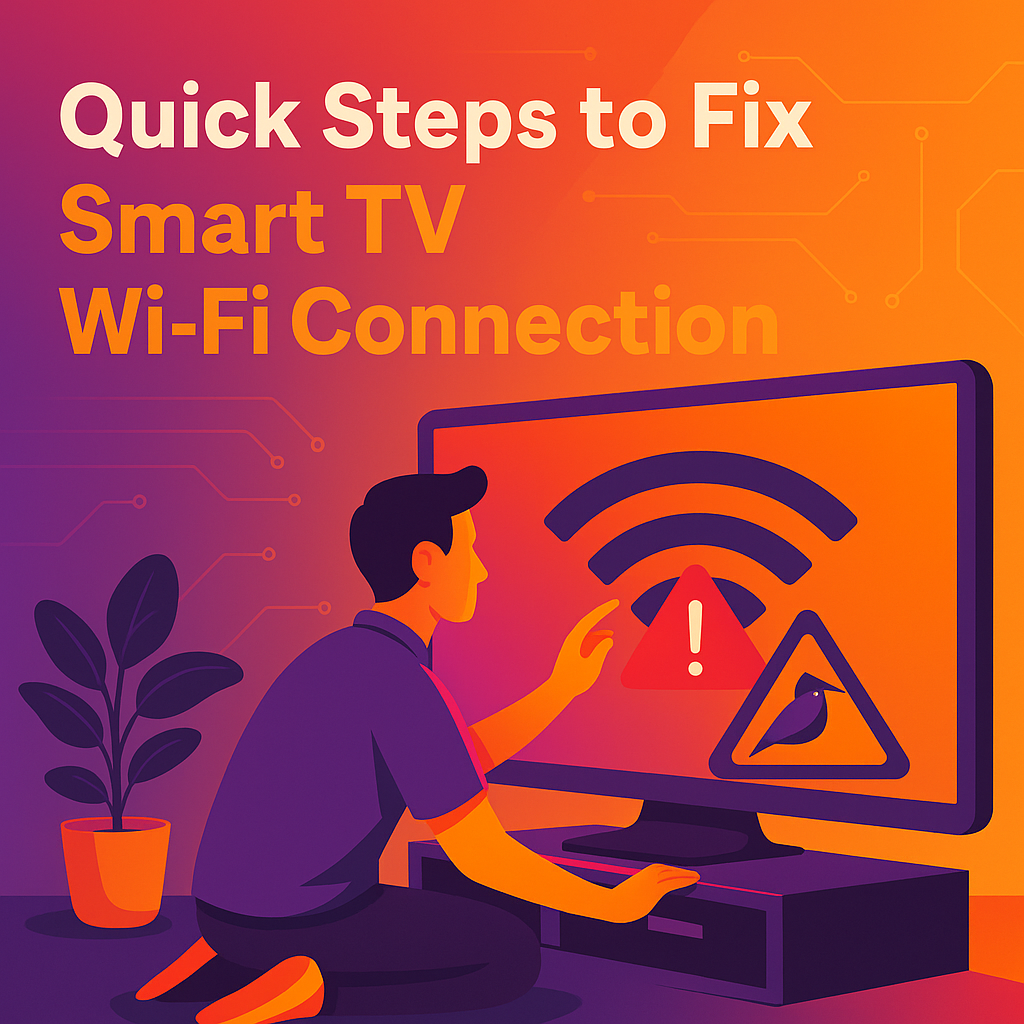
Quick Steps to Fix Smart TV Wi - Fi Connection
Try these easy fixes first, step-by-step:
1. Restart Your TV and Router
This simple step fixes many Wi - Fi issues:
Turn off your Smart TV (unplug for 30 seconds, then plug back in)
Turn off your router (unplug for 30 seconds, then plug back in)
Wait 2 - 3 minutes for devices to fully restart
Try connecting your TV again
2. Check Wi - Fi Network and Password
Ensure your TV is connecting to the correct Wi-Fi network
Double-check your password (case-sensitive)
Consider selecting “Forget Network” and reconnecting from scratch
3. Improve Wi - Fi Signal Strength
Poor signal strength often causes TV connection issues:
Move your router closer to your TV, or vice versa
Avoid placing your router behind furniture, walls, or appliances
Ensure your router isn’t overloaded with too many connected devices
More tips: Optimizing Router Placement for Speed
4. Change Wi - Fi Band (2.4GHz or 5GHz)
Most modern routers broadcast both bands:
2.4GHz: Better range, but slower speeds and more interference
5GHz: Faster, less interference, but shorter range
Try switching your TV connection from 5GHz to 2.4GHz, or vice versa, if supported.
More guidance: Best Wi - Fi Channels and Band Settings
5. Update Your Smart TV’s Firmware
Outdated software can cause connection issues:
On your Smart TV, open Settings
Look for Support > Software Update (Samsung, LG) or System > Software Update (Sony, TCL, Hisense)
Follow prompts to update
Detailed steps: Smart TV Firmware Update Steps
6. Reset Your TV’s Network Settings
If connection issues continue:
Open Settings on your Smart TV
Find Network settings
Select Reset Network or Reset Wi - Fi Settings
Reconnect to your Wi-Fi again after resetting
7. Check Router Settings
Sometimes router settings cause issues:
Ensure MAC filtering (access control) is turned off or your TV’s MAC address is permitted
Try rebooting or resetting your router if persistent issues occur
Advanced Solutions (Still Easy!)
Try Wired Connection
If Wi - Fi continues to cause trouble:
Connect your Smart TV directly to your router using an Ethernet cable
This usually resolves all streaming and connection issues instantly
Factory Reset Your Smart TV (Last Resort)
This resets all settings to default (you’ll need to log in to streaming apps again):
Open Settings > General > Reset to Initial Settings (LG) or Settings > Support > Self Diagnosis > Reset (Samsung)
Follow on-screen instructions
After reset, reconnect to Wi-Fi and set up your TV again
Important: Factory reset removes your personal settings and login details.
When to Call Zelrose IT
Call us if:
Your TV still won’t connect after trying these steps
You’d prefer someone else to handle the troubleshooting
You suspect your router or Wi-Fi network needs professional adjustment
Zelrose IT offers:
Fast in-home Wi-Fi and Smart TV troubleshooting
Router optimisation and firmware updates
Easy-to-understand advice with no tech jargon
Professional solutions to fix your connectivity problems quickly
Quick Checklist: Fix Smart TV Wi - Fi Connection
Restart TV and router
Check Wi - Fi name and password
Improve Wi - Fi signal
Change Wi - Fi band/channel
Update TV firmware
Reset TV’s network settings
Try Ethernet cable
Call Zelrose IT for help if needed
Still Can’t Connect Your Smart TV? Call Zelrose IT
Don’t let a stubborn Smart TV spoil your streaming. Zelrose IT can quickly reconnect your TV, optimise your home Wi - Fi, and get you back to enjoying your favourite shows hassle - free.
Call 0478 843 700 or visit www.zelrose.com.au to book friendly support - right at home or remotely across the Central Coast.
Related Posts You Might Like: