
How to Re-Pair Bluetooth Devices
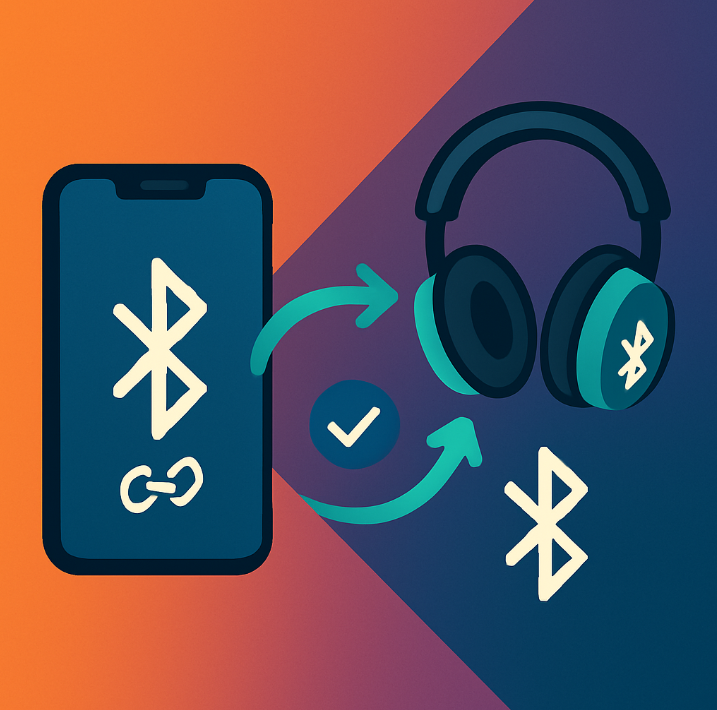
If your Bluetooth headphones, keyboard, speaker, or other device suddenly stops working with your phone, tablet, or computer, the most effective fix is usually to re-pair the device. Re-pairing means removing the existing connection and starting fresh.
In this simple guide for Central Coast home users, we’ll show you how to re-pair Bluetooth devices on Android, iPhone, and Windows PCs—and when it’s time to reach out to the friendly local team at Zelrose IT if things still aren’t working right.
What Does “Re-Pairing” Mean?
Re-pairing involves:
Unpairing (removing) the device from your phone, tablet or PC
Putting the device back into pairing mode
Reconnecting the device as if it were new
This is a go-to fix when:
Bluetooth won’t connect
Sound drops out
A device connects but doesn’t work properly
Your phone or PC says "Connection Failed" or "Couldn't pair"
Re-Pairing Bluetooth on Android
1. Remove the Existing Device
Go to Settings > Connected Devices > Bluetooth
Tap the gear icon next to the device that’s not working
Tap Forget or Unpair
2. Put the Bluetooth Device in Pairing Mode
Most Bluetooth accessories enter pairing mode by holding down the power or Bluetooth button until a blinking light appears
Some headphones have a dedicated pairing button
Check the manual for your specific device if unsure
3. Reconnect the Device
Go back to Settings > Bluetooth
Wait for your device to appear in the list
Tap to pair
Confirm any prompts that appear
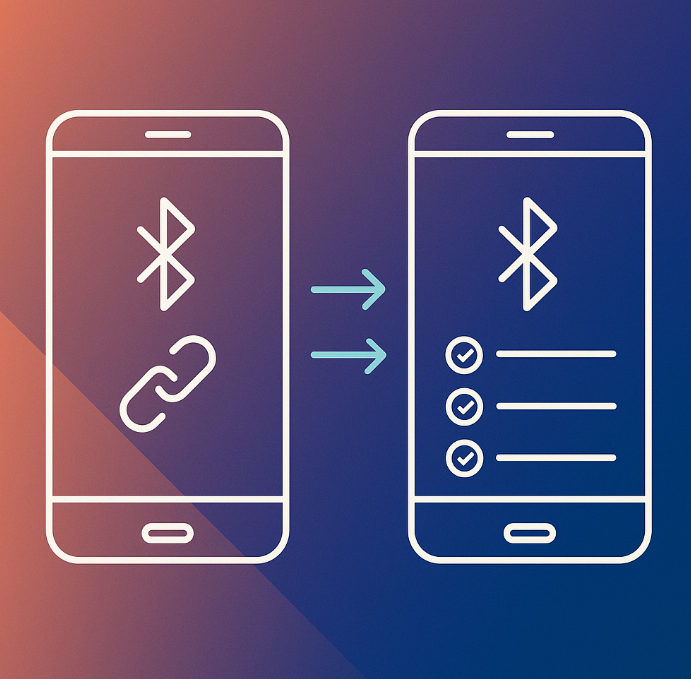
Re-Pairing Bluetooth on iPhone or iPad
1. Forget the Device
Go to Settings > Bluetooth
Tap the "i" icon next to the device
Tap Forget This Device, then confirm
2. Put the Bluetooth Accessory in Pairing Mode
Follow the same steps as above (usually involves holding a button for a few seconds)
3. Reconnect
Stay in Settings > Bluetooth
Wait for your device to show up under “Other Devices”
Tap the name to pair again
Re-Pairing Bluetooth on Windows 10/11
1. Remove the Device
Go to Settings > Devices > Bluetooth & other devices
Click the device name
Click Remove device, then confirm
2. Restart Bluetooth
Toggle Bluetooth off and on via the settings page or taskbar icon
This refreshes the connection
3. Reconnect the Device
Click Add Bluetooth or other device
Select Bluetooth
Put your device in pairing mode
Select it from the list and follow the prompts
Tips for Successful Re-Pairing
Charge your Bluetooth device—low battery can block pairing
Restart your phone or computer before retrying
Move closer—Bluetooth works best within 1–3 metres
Avoid interference—Wi-Fi routers, microwaves, and thick walls can affect pairing
Make sure the device isn’t already paired with something else
Still Can’t Pair? Try This:
Reset your Bluetooth accessory (some have a pinhole reset or a long button press)
Reset network settings on your phone:
Android: Settings > System > Reset > Reset Wi-Fi, mobile & Bluetooth
iPhone: Settings > General > Transfer or Reset > Reset Network Settings
This will also forget Wi-Fi networks, so be sure you know your passwords.
Need help with this? Just call Zelrose IT—we’ll walk you through it or come to you.
When to Call Zelrose IT
Call us if:
Bluetooth won't turn on or keeps dropping out
You can’t find your device in the Bluetooth list
You’ve re-paired successfully but the device still won’t work
You need help updating Bluetooth drivers or settings on Windows or Mac
We offer:
In-home Bluetooth troubleshooting
Pairing help for headphones, soundbars, smart TVs, hearing aids, printers, and more
Friendly, clear advice—no tech jargon
Quick Checklist: Re-Pairing a Bluetooth Device
✔ Unpair the device from your phone or computer
✔ Put the device in pairing mode
✔ Turn Bluetooth off and on
✔ Reconnect the device and test it
✔ Contact Zelrose IT if issues persist

Need Help Pairing Your Bluetooth Device?
If Bluetooth issues are driving you mad, let Zelrose IT take care of it. We can pair your devices, fix common problems, and get everything working the way it should—either remotely or in person across the Central Coast.
Call 0478 843 700 or visit www.zelrose.com.au to book help today.
Related Posts You Might Like: