
What Causes Computers to Freeze?
Your computer freezing can be frustrating, especially when you’re in the middle of something important - like writing an email, joining a video call, or printing a document. But why does it happen? While a one-off freeze is often nothing to worry about, frequent freezing could point to deeper issues.
In this guide tailored for home users on the Central Coast, we’ll explain the most common reasons computers freeze, how to fix them, and when to call in the friendly local experts at Zelrose IT for help.
What Does a “Computer Freeze” Mean?
A freeze happens when your computer stops responding to your commands. You might notice:
Your mouse and keyboard don’t respond.
The screen is stuck on one image.
You hear fans spinning but nothing moves.
You need to force shutdown the computer to get it going again.
Let’s look at what causes this.
Top 10 Reasons Computers Freeze
1. Too Many Programs Running at Once
Having too many browser tabs, apps, or background tasks open uses up memory (RAM) and processor power, causing your system to slow down - or completely freeze.
Solution:
Close unnecessary programs and manage startup apps.
See: Managing Startup Programs for Faster Boot
2. Low RAM (Memory)
If your computer has 4GB or less RAM, it may struggle with modern websites and software.
Solution:
Upgrade your RAM to 8GB or 16GB for smoother performance.
Related: Upgrading RAM vs SSD: What's Better?
3. Overheating
Heat is the enemy of computer performance. If your PC or laptop gets too hot, it may freeze to protect itself.
Signs of overheating:
Fans constantly running loudly
Hot keyboard or underside
Sudden slowdowns or shutdowns
Solution:
Clean internal dust and ensure ventilation is clear.
Or let Zelrose IT safely clean and maintain your hardware.
4. Outdated Software or Drivers
Old drivers or system updates can cause compatibility issues and freezes.
Solution:
Run Windows or macOS updates regularly.
Update device drivers via the manufacturer’s website.
5. Malware or Viruses
Malicious software can overload your system or block processes.
Solution:
Run a full antivirus and malware scan.
See: Detecting and Removing Malware
6. Failing Hard Drive
If your hard drive is old or damaged, your system might freeze when trying to access files.
Signs include:
Clicking or grinding noises
Frequent crashes
Slow loading times
Solution:
Back up your data and contact Zelrose IT to replace or upgrade to a faster SSD.
7. Not Enough Disk Space
If your drive is nearly full, your system may struggle to run.
Solution:
Clear temporary files, remove old programs, and empty the recycle bin.
Related: Disk Cleanup Tools and Tips
8. Corrupted System Files
System files may get damaged from improper shutdowns, power outages, or malware.
Solution:
Use Windows’ built-in System File Checker (SFC) or reinstall macOS safely.
Zelrose IT can handle this step if you're unsure.
9. Conflicting Programs or Startup Apps
Some programs don’t play nicely with others and cause freezing.
Solution:
Disable unnecessary startup programs and uninstall recently added software if problems began after installation.
10. Faulty Hardware (RAM, Graphics, Power Supply)
In rare cases, a physical hardware part may be faulty or damaged, especially in older systems.
Solution:
Contact Zelrose IT to perform professional diagnostics and hardware checks.
How to Respond When Your Computer Freezes
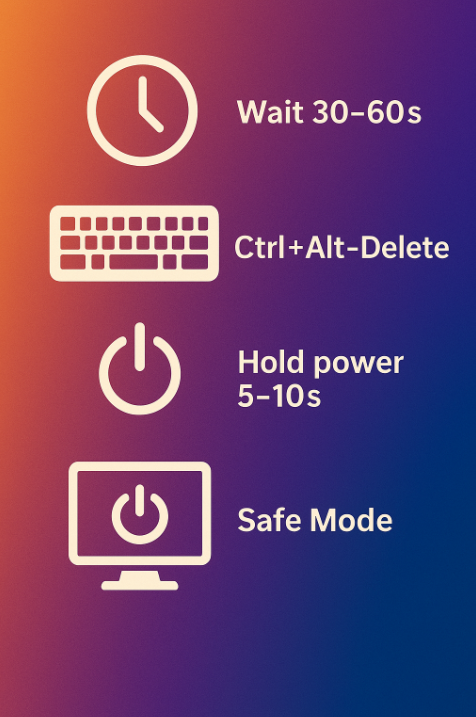
Here’s what to do if your system locks up:
Wait 30–60 seconds – Sometimes the system recovers on its own.
Try Ctrl + Alt + Delete – Open Task Manager to close unresponsive programs.
How to Use Task Manager to Unfreeze a PC
Still frozen? Hold the power button for 5–10 seconds to shut down safely.
Restart in Safe Mode and troubleshoot.
How to Boot into Safe Mode (Windows/Mac)
When to Call Zelrose IT
If freezing happens regularly or you're unsure what to do, Zelrose IT is here to help.
We offer:
Expert diagnostics
Malware removal and clean-up
Hardware upgrades and repairs
Friendly, local support with no confusing tech talk
Whether you need a quick fix or a complete tune-up, we’re here to get your system running smoothly again.
Quick Checklist: Common Freeze Causes
Too many programs open
Low RAM or full storage
Outdated software or drivers
Malware or system file errors
Overheating or faulty hardware
Ready for Smooth, Freeze-Free Computing?
Don’t let a frozen computer ruin your day. Call Zelrose IT today for fast, friendly support across the Central Coast.
0478 843 700
www.zelrose.com.au
Related Posts You Might Like: