
How to Force Restart Android and iOS
If your smartphone is frozen, unresponsive, or stuck on a black screen, your first instinct might be to panic or head straight to the nearest repair shop. But wait - force restarting your phone is often all it takes to get things working again.
This simple guide explains how to safely perform a force restart on both Android and iPhone devices, when to use it, and when it’s best to call Zelrose IT - your local Central Coast tech experts - for help if problems persist.
What Is a Force Restart?
A force restart (also called a hard reboot) is a way to restart your phone without using the screen. It’s useful when:
The screen is frozen or unresponsive
The phone won’t turn on or off normally
Apps are stuck or not closing
You’re experiencing system glitches
Force restarting does not delete your data. It simply refreshes your phone’s system.
How to Force Restart an iPhone
The steps vary depending on your iPhone model:
iPhone 8, X, 11, 12, 13, 14, or 15 (Face ID models)
Quickly press and release the Volume Up button
Quickly press and release the Volume Down button
Press and hold the Side (Power) button
Keep holding until you see the Apple logo
Release the button
iPhone 7 / 7 Plus
Press and hold Volume Down and Power (Side) buttons at the same time
Keep holding until the Apple logo appears
Release both buttons
iPhone 6s, 6s Plus, SE (1st Gen)
Press and hold both the Home button and the Power (Top or Side) button
Keep holding until the Apple logo shows
Release both buttons
How to Force Restart an Android Phone
The process can vary slightly depending on the brand, but these general methods cover most Android devices:
Method 1: Most Android Phones (Samsung, Oppo, Pixel, Motorola)
Press and hold the Power button and the Volume Down button
Hold both for 10–15 seconds
Wait until the screen goes black and the phone restarts
Release buttons when you see the logo
Method 2: Power Button Only (Some models)
Press and hold the Power button for 10–20 seconds until the phone restarts.
Samsung Galaxy (Some models)
Press and hold Power + Volume Down for 10–15 seconds.
On newer models (S20 and up), hold Side key + Volume Down.
When Should You Force Restart a Smartphone?
Use a force restart if:
The phone is frozen or won’t respond to taps or buttons
The screen is stuck or black
The phone is overheating or glitching
You’ve tried restarting normally, and it doesn’t work
What If Force Restart Doesn’t Work?
If your phone still won’t respond after a force restart:
Charge your phone for at least 15–30 minutes and try again
Make sure the charging cable and wall adapter are working
Try connecting to a computer using a USB cable
If nothing works, it may be a hardware issue, battery failure, or software corruption
That’s when it’s time to call Zelrose IT.
Zelrose IT Can Help With:
Diagnosing and fixing phones that won’t turn on
Recovering data from stuck or frozen devices
Updating or resetting system software
Replacing failing batteries or buttons (via our network of repair partners)
We offer fast, clear, and friendly help - on-site across the Central Coast or via remote assistance for compatible issues.
Helpful Tips to Avoid Freezing Issues
Keep your phone’s software up to date
Don’t overload your phone with unnecessary apps
Restart your phone weekly to refresh memory
Clear app caches regularly
Avoid installing apps from unknown sources
Quick Checklist: How to Force Restart Your Phone
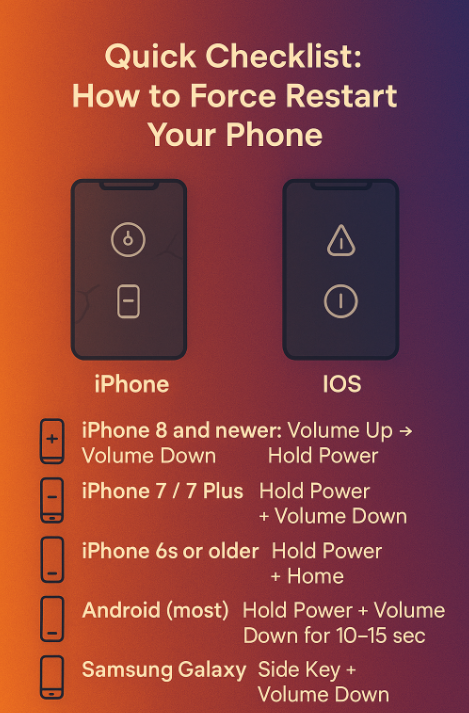
iPhone 8 and newer:
Volume Up → Volume Down → Hold Power
iPhone 7 / 7 Plus:
Hold Power + Volume Down
iPhone 6s or older:
Hold Power + Home
Android (most):
Hold Power + Volume Down for 10–15 seconds
Samsung Galaxy:
Side Key + Volume Down
Still Stuck? Zelrose IT Can Get You Back Online
If your smartphone still isn’t responding after a force restart - or if you’d prefer someone else to sort it - Zelrose IT is ready to help.
Call 0478 843 700 or visit www.zelrose.com.au to book friendly tech support - either in your home or remotely.
Related Posts You Might Like: