
Managing Storage: Free Up Space Easily
Running out of storage on your phone can be incredibly frustrating - especially when you’re trying to take a photo, install an app, or update your device. Fortunately, you don’t need to be tech-savvy to reclaim space and keep your phone running smoothly.
In this simple guide for Central Coast home users, we’ll walk you through the easiest ways to free up storage space on Android and iPhone devices, help you avoid common storage traps, and let you know when to call Zelrose IT for friendly, hands-on help.
Why Is Phone Storage Important?
When your phone’s storage is full, you might notice:
Slower performance
App crashes or errors
Inability to take new photos or videos
Trouble updating apps or your system
By managing your storage regularly, you can avoid these issues and extend the life of your device.
How to Free Up Space on Android
1. Use Built-in Storage Tools
Most Android phones include a storage manager:
Go to Settings > Storage
Tap Free up space or Smart Storage
Follow prompts to delete junk files, large files, and rarely used apps
2. Delete Unnecessary Downloads
Open your Downloads or Files app
Delete old PDFs, images, or installer files you don’t need
3. Clear App Cache
Cached data can build up quickly:
Go to Settings > Apps
Select an app (like Chrome or Facebook)
Tap Storage, then Clear Cache
Repeat this for apps using a lot of space.
4. Move Photos and Videos to the Cloud
Photos and videos are usually the biggest space hogs.
Use Google Photos (free up to 15GB)
Open the app, tap your profile photo, and select Free up space
Files will be uploaded to the cloud and removed from your device
5. Uninstall Unused Apps
Go to Settings > Apps or use the Play Store
Sort by size or “last used”
Delete any apps you haven’t opened in a while
How to Free Up Space on iPhone
1. Check Your Storage Usage
Go to Settings > General > iPhone Storage
You’ll see a breakdown of what’s taking up space (apps, photos, messages, etc.)
Apple will suggest files or apps to remove - tap to follow suggestions
2. Enable Offloading Unused Apps
This feature removes apps you don’t use, but keeps their data in case you reinstall later.
Go to Settings > App Store
Turn on Offload Unused Apps
3. Delete Old Messages and Attachments
Text messages (and especially photo or video attachments) can take up lots of space:
Go to Settings > Messages
Under “Message History,” set messages to delete after 30 days or 1 year
4. Optimise Photo Storage
Go to Settings > Photos
Turn on iCloud Photos
Select Optimise iPhone Storage so only low-resolution versions are stored locally
5. Empty the Recently Deleted Album
After deleting photos, they remain in your “Recently Deleted” album for 30 days:
Open Photos > Albums > Recently Deleted
Tap Select > Delete All
General Tips for Both iPhone and Android
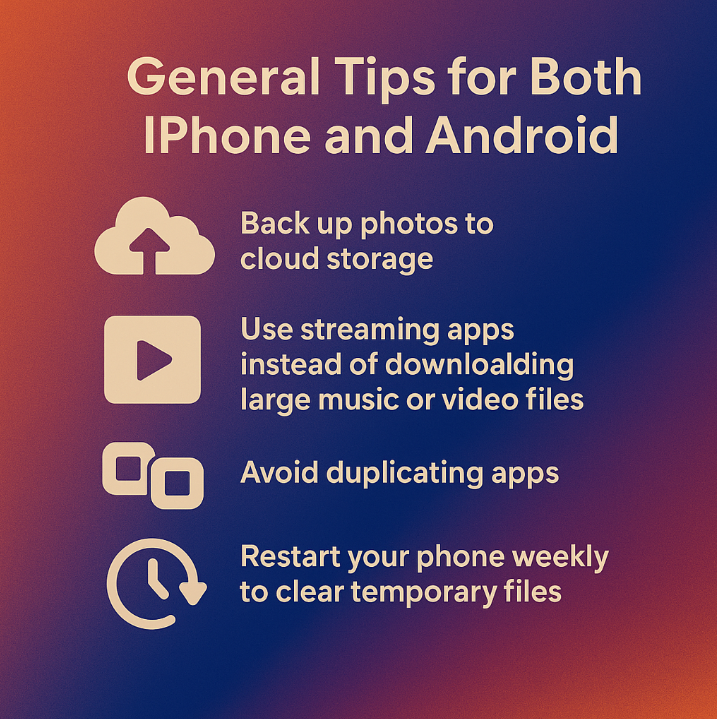
Regularly back up photos to cloud storage
Use streaming apps instead of downloading large music or video files
Avoid duplicating apps (like having multiple browsers or photo editors)
Restart your phone weekly to clear temporary files
When to Call Zelrose IT
If your phone is still showing “Storage Almost Full” even after trying these steps - or if you’re worried about deleting the wrong thing - Zelrose IT is here to help.
We offer:
In-home or remote support
Friendly help with no jargon
Data backup and storage setup
Safe app and file clean-up
Quick Checklist: Freeing Up Phone Storage
Clear downloads and app caches
Use Google Photos or iCloud to back up images
Delete or offload unused apps
Remove old messages and media
Clean out “Recently Deleted” folders
Running Out of Space? Zelrose IT Can Help

Don’t let “low storage” slow you down. Zelrose IT can clean up your phone, back up your data, and help you set up automatic solutions to avoid the problem in future.
Call 0478 843 700 or visit www.zelrose.com.au for friendly mobile support across the Central Coast.
Related Posts You Might Like: